
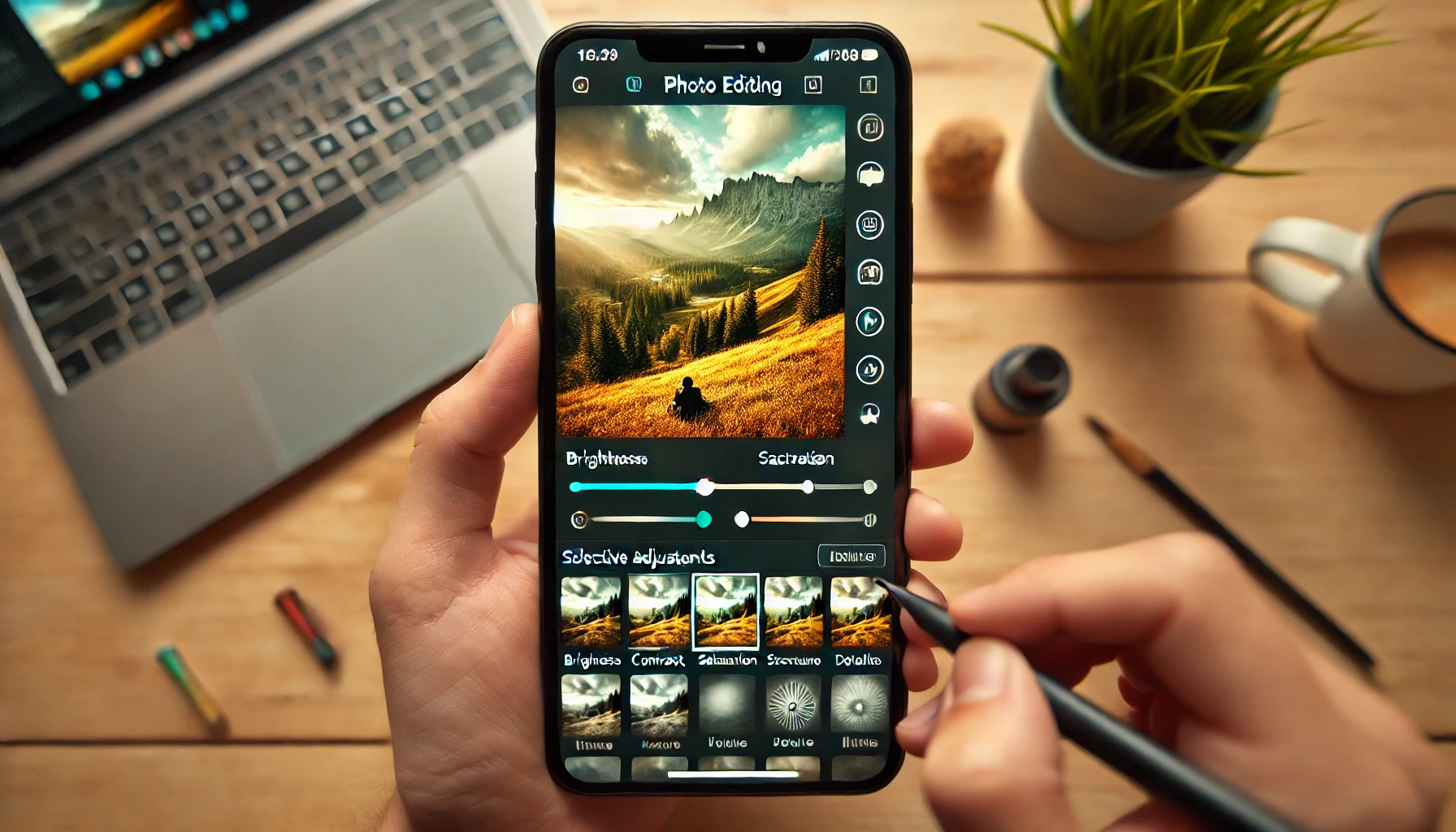
Snapseed is one of the best free photo editing apps available for smartphones. Developed by Google, it offers a wide range of powerful tools that allow you to enhance your images with ease. Whether you’re a beginner or an experienced photographer, Snapseed has all the features you need to transform your photos and make them look professional.
In this article, we’ll guide you through how to edit photos on your smartphone using Snapseed, covering the basic tools, advanced features, and tips for achieving stunning results.
1. Getting Started with Snapseed
Before you can start editing, you need to install Snapseed on your smartphone. It’s available for both Android and iOS devices, and it’s completely free.
Once the app is installed, open Snapseed and import the photo you want to edit by tapping on the + button or selecting the image directly from your gallery.
Basic Interface Overview:
- Tools: These are the editing features you can use to enhance your photo, including things like exposure, filters, and sharpness.
- Filters: Snapseed offers a selection of pre-made filters that can give your photos a specific look or feel.
- History: If you want to undo or revisit any of your edits, you can use the history option to go back to previous stages of your editing process.
2. Basic Editing Tools in Snapseed
Snapseed offers a wide array of tools that can improve your photos, whether you’re looking to make basic adjustments or fine-tune details.
Tune Image
The Tune Image tool is one of the most useful features in Snapseed. It allows you to adjust the overall exposure, brightness, contrast, and colors in your photo.
- Brightness: Adjust the overall lightness or darkness of the image.
- Contrast: Increase or decrease the contrast between the light and dark areas of the image.
- Saturation: Adjust the vibrancy of the colors in the photo. Increase saturation for more vivid colors or decrease it for a more muted look.
- Ambience: This tool enhances both the exposure and colors in the image to give a more dynamic and balanced effect.
- Highlights and Shadows: These sliders allow you to recover details in bright (highlight) or dark (shadow) areas of the image.
- Warmth: Adjust the color temperature of the photo to make it warmer (yellow) or cooler (blue).
Crop
The Crop tool allows you to change the aspect ratio and size of your photo. You can crop out unwanted elements or change the framing of your image to better highlight the subject.
- Aspect Ratios: Snapseed provides preset aspect ratios such as 4:3, 16:9, and even a square option (1:1), which is useful for social media posts like Instagram.
- Freeform: If you want to crop the image to a custom size, you can use the freeform crop option.
Rotate and Straighten
The Rotate tool allows you to straighten your image or rotate it to your desired angle.
- Straighten: If your photo is tilted or the horizon is not level, you can use the straighten tool to align it.
- Rotate: Snapseed allows you to rotate the image at 90-degree increments, or you can adjust it manually by swiping left or right.
3. Advanced Editing Tools in Snapseed
While Snapseed’s basic tools are great for general edits, the app also offers more advanced features for detailed enhancements.
Selective Adjust
The Selective Adjust tool lets you adjust specific areas of the image, rather than applying changes to the entire photo. This is particularly useful for fine-tuning certain parts of your image without affecting the whole picture.
- Adjust Areas: Tap anywhere on the photo to create a point, and Snapseed will apply adjustments only to that area. You can control the size and strength of the adjustment.
- Brush Adjustments: If you want to make precise edits in a particular area (such as brightening a face or darkening the background), the brush tool is perfect for adding local adjustments.
Healing Tool
The Healing Tool allows you to remove blemishes, spots, or unwanted objects from your photo. It works by sampling pixels around the area you want to remove and blending them seamlessly.
- How to Use: Tap on the area you want to remove, and Snapseed will automatically fill it in with surrounding pixels. This tool is perfect for getting rid of small distractions in your image.
Details Tool
The Details tool is useful for enhancing the sharpness and texture of specific areas in the photo, making the image look more detailed and crisp.
- Structure: This slider enhances mid-tone contrast, making textures more noticeable. It’s great for adding depth to an image, such as when photographing architecture or nature.
- Sharpening: Adjust the sharpness of the entire image, or selectively sharpen areas that need more detail, like a subject’s eyes in a portrait.
4. Filters and Creative Effects
In addition to the basic and advanced editing tools, Snapseed offers a variety of filters and creative effects that can instantly transform the look of your photo.
Drama Filter
The Drama filter adds a high-contrast, vibrant look to your photo, making it appear more dramatic. It’s perfect for landscapes or cityscapes when you want to emphasize details and add depth.
Lens Blur
The Lens Blur filter simulates the bokeh effect typically found in professional cameras, where the background is blurred while the subject remains sharp. You can adjust the area of focus and the intensity of the blur, giving your photos a more professional look.
Black and White
If you’re looking to convert your photo into black and white, Snapseed offers a variety of black-and-white filters, each with different contrast and grain options. You can customize the look of the image by adjusting the settings for exposure, contrast, and texture.
Vintage and Retro Filters
Snapseed offers several vintage and retro filters that can give your photos an aged or nostalgic look. These filters are great for adding mood and atmosphere to your images.
5. Exporting and Sharing Your Photos
Once you’ve finished editing your photo, Snapseed makes it easy to export and share your images.
- Export Options: You can save your edited photo in various formats, including JPEG or PNG. Choose the resolution and quality before exporting.
- Sharing: Directly share your photos to social media platforms like Instagram, Facebook, or email. Snapseed also allows you to save your photos to cloud storage or send them to other apps.
Conclusion
Snapseed is an incredibly versatile and powerful photo editing app that is perfect for beginners and experienced photographers alike. With its range of tools—from basic exposure adjustments to advanced features like selective editing and healing—you can enhance your photos and make them look professional. Whether you’re editing a simple snapshot or creating an artistic masterpiece, Snapseed gives you all the tools you need to take control of your mobile photography.